Invite Users
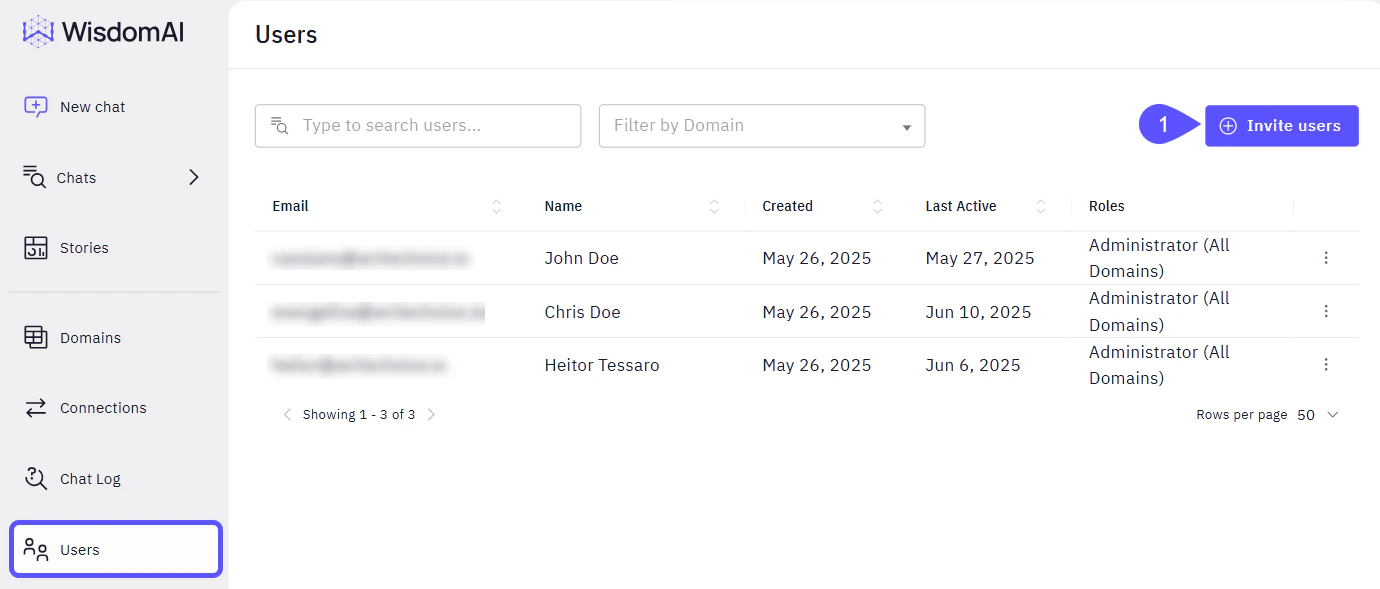
As an administrator, you can invite additional users to your WisdomAI environment:- Navigate to Users > Invite Users. The Invite Users modal window will open.
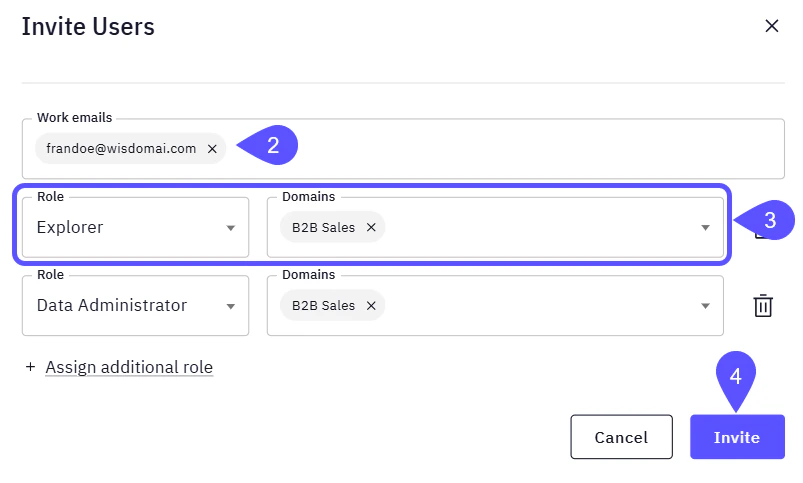
- Enter the email address of the person you want to invite.
- Assign the appropriate role and the corresponding Domain.
- You can assign more than one Role and Domain to a user.
- To delete any record, click on the bin icon.
- Click Invite.
Assign Roles
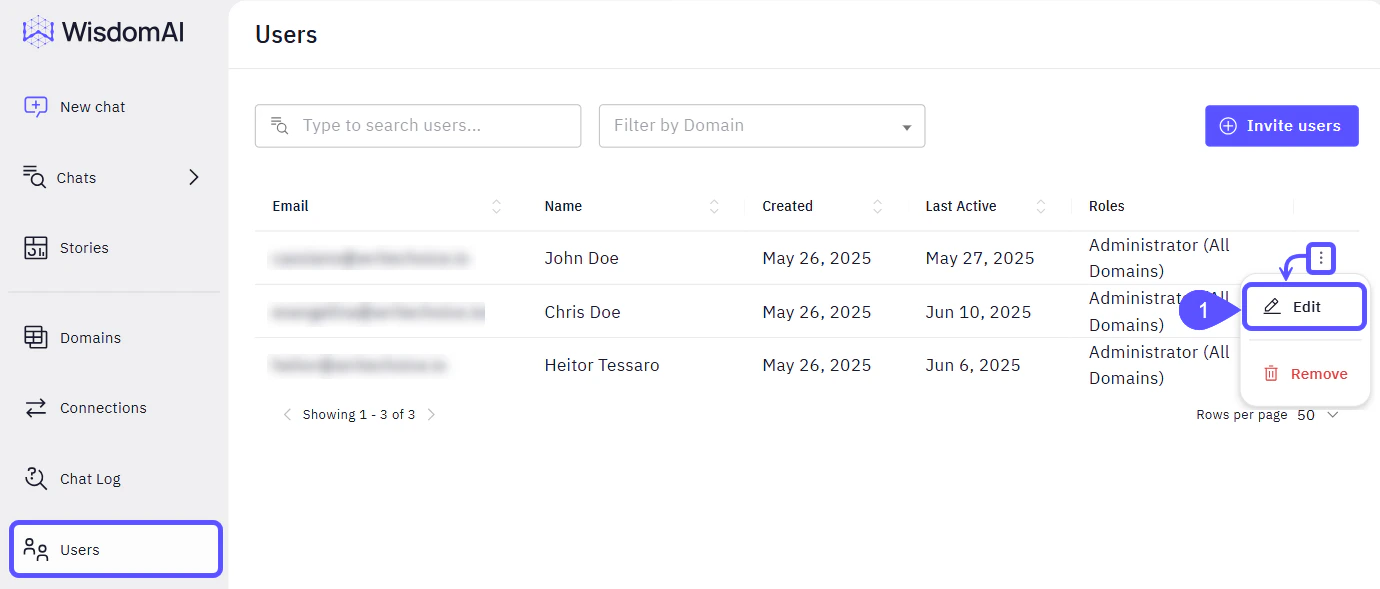
Whether you need to add or change a user’s role, you can do it from the users list.- Navigate to Users > Find the user to assig/change the rol, click on the kebab menu (three vertical dots) on its row, and select Edit. The Edit User modal window will open.
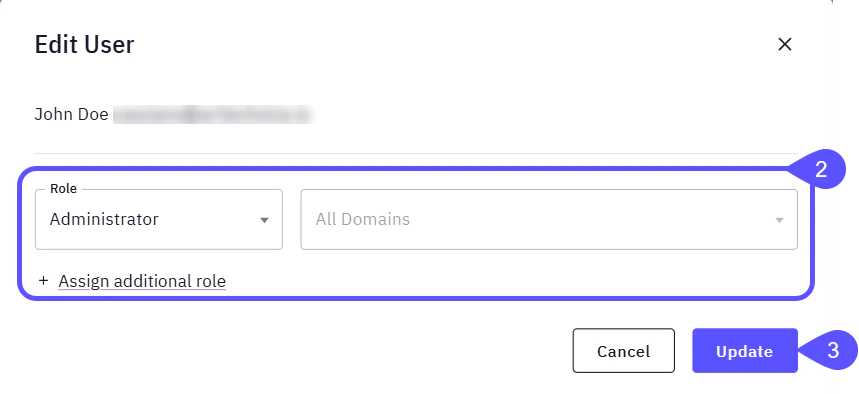
- Edit the Role/Domains information or assign an additional Role.
- Click Update.