> ## Documentation Index
> Fetch the complete documentation index at: https://wisdomai-add-trigger-agent-api.mintlify.site/llms.txt
> Use this file to discover all available pages before exploring further.
# Schedule Story Notifications
By setting up a notification schedule, recepients can automatically get updates, such as reminders or content deliveries via email.
Use notifications to:
* Keep stakeholders in the loop.
* Ensure timely reviews or approvals.
* Automate regular Story updates without manual follow-up.
Follow this guide to learn how to schedule Stories.
## Schedule Stories' Notifications
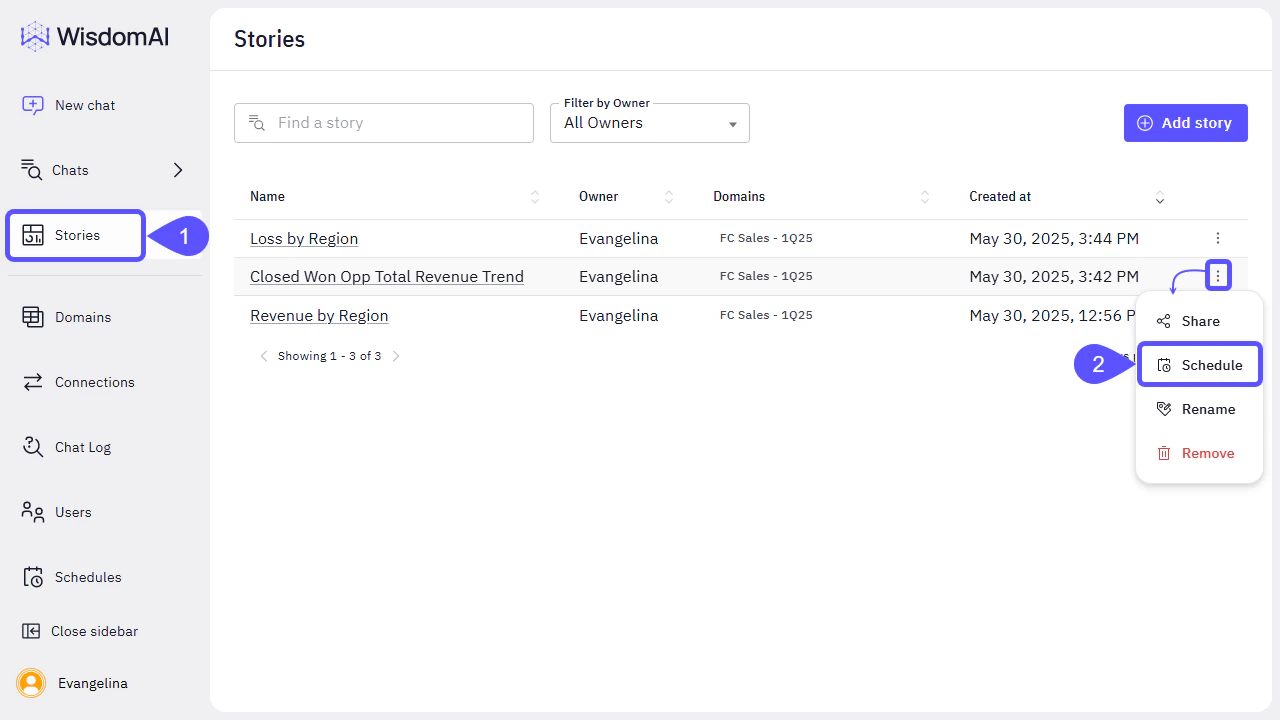
1. Navigate to the **Stories** section in the left sidebar.
2. Find the Story you would like to share, click on the kebab menu icon and select **Schedule**.
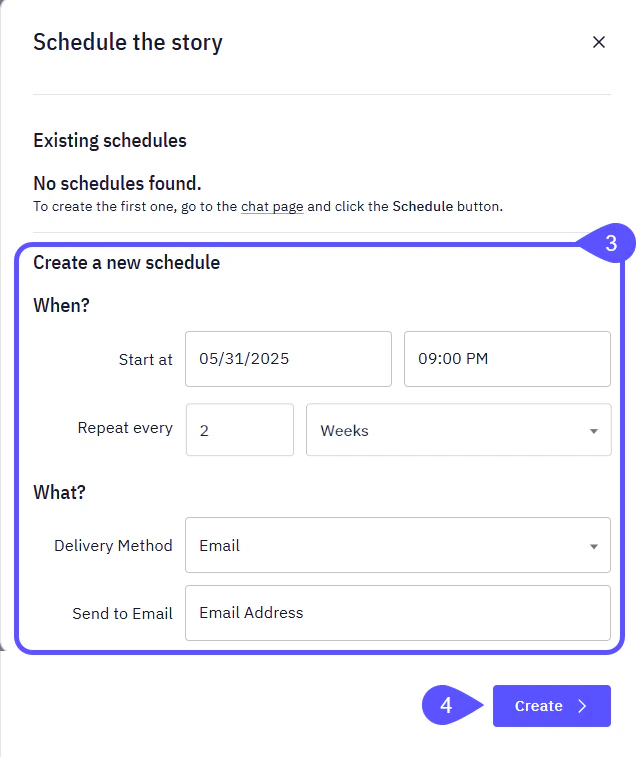
 3. In the modal window that opens, you can **Create a new schedule** by configuring the following:
* **When?**
* Set the **Start Date**, for example, Start at 31/05/25, at 9:00 PM.
* Choose the **Interval**, for example, Repeat every 2 Weeks.
* **What?**
* Select the **Delivery Method** (currently only **Email** is supported).
* Enter the **recipient’s email address**. You can add more than one address by separating them with a comma.
4. Click on **Create** to save your scheduled notification.
3. In the modal window that opens, you can **Create a new schedule** by configuring the following:
* **When?**
* Set the **Start Date**, for example, Start at 31/05/25, at 9:00 PM.
* Choose the **Interval**, for example, Repeat every 2 Weeks.
* **What?**
* Select the **Delivery Method** (currently only **Email** is supported).
* Enter the **recipient’s email address**. You can add more than one address by separating them with a comma.
4. Click on **Create** to save your scheduled notification.
 **Existing Schedules**
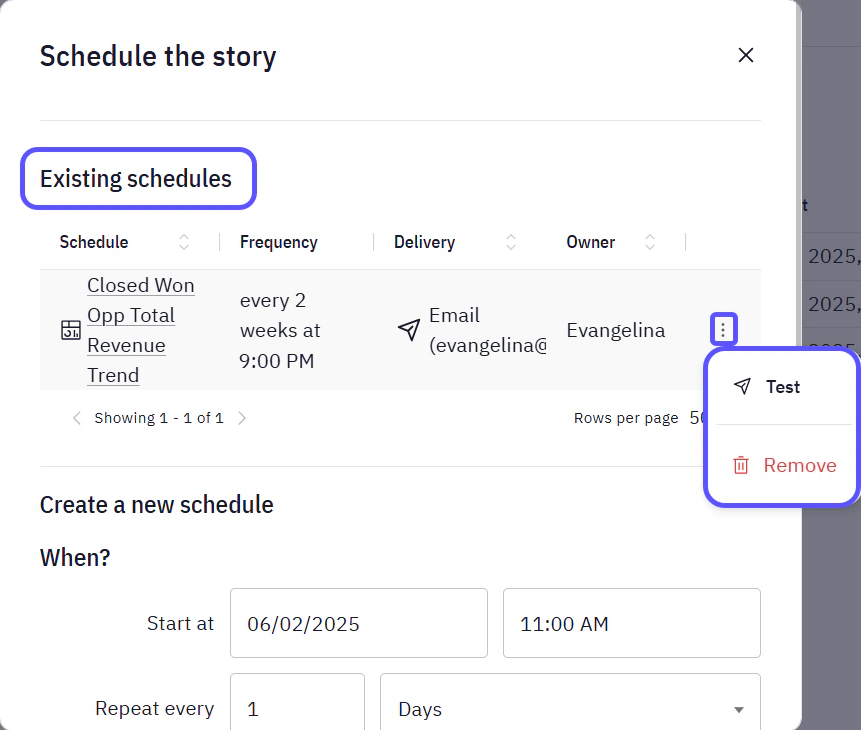
After creating a schedule, it will appear in the **Existing Schedules** section the next time you open the **Schedule** option for the same Story.
From there, you can **Test** or **Remove** it.
**Existing Schedules**
After creating a schedule, it will appear in the **Existing Schedules** section the next time you open the **Schedule** option for the same Story.
From there, you can **Test** or **Remove** it.
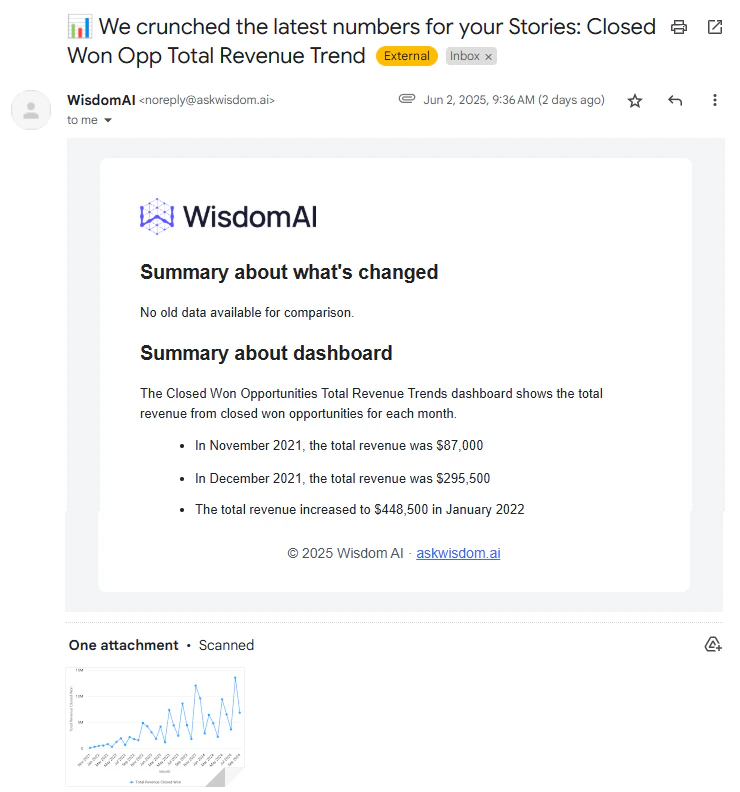
 Here is an example of how notifications from WisdomAI are delivered: users receive a summary email with key insights along with a visual trend graph and specific data points as illustrated in the image below.
 ## Next Steps
* [Turn Answers into Stories](using-wisdom-ai-everyday/turn-answers-into-stories)
* [Share Stories and Set Access Control](/using-wisdom-ai-everyday/share-stories-and-set-access-control)
## Next Steps
* [Turn Answers into Stories](using-wisdom-ai-everyday/turn-answers-into-stories)
* [Share Stories and Set Access Control](/using-wisdom-ai-everyday/share-stories-and-set-access-control)