> ## Documentation Index
> Fetch the complete documentation index at: https://wisdomai-add-trigger-agent-api.mintlify.site/llms.txt
> Use this file to discover all available pages before exploring further.
# Validate and Test Answers
To ensure that the information provided in the answer is accurate, relevant, and reliable, you can:
* Test and validate both natural language responses and SQL query results directly within the chat interface.
* Review the generated output by providing feedback.
* Edit or vet the SQL query when necessary.
These features help you iterate efficiently and build confidence in the outputs you receive.
## Validate Answers
As you use the chatbot, you can train it. Validate or disprove answers and provide feedback to trigger a revision. There are three main ways to do so:
* [Using the thumbs up/down icons](#use-the-thumbs-updown-icons) to provide feedback
* [By editing the response](#edit-the-response)
* [By fine-tuning the Context](#fine-tune-the-context)
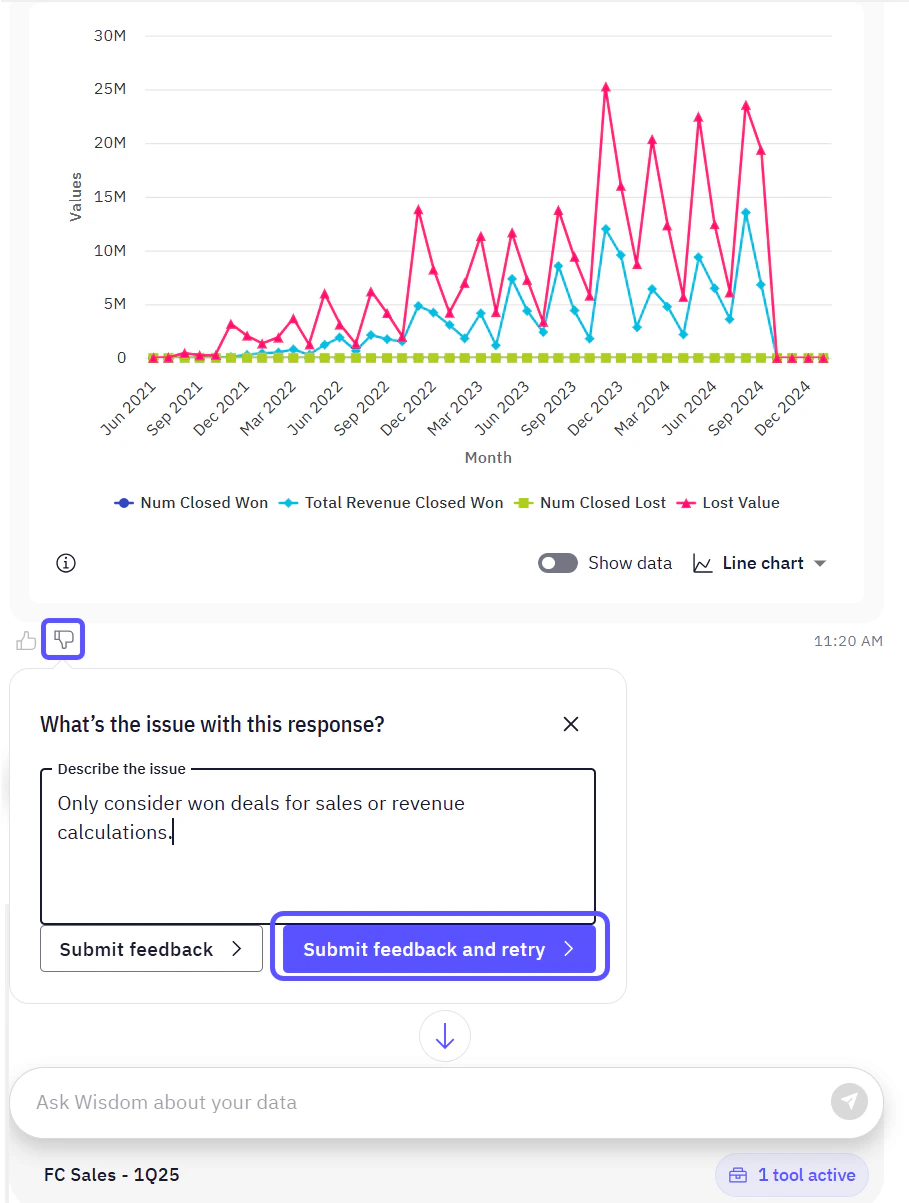
### Use the thumbs up/down icons
If your feedback was thumbs down, a new window opens to let you adjust the query accordingly . The more thumbs up/down you provide, the more you will be training the tool to get a high quality correct answer.
 ### Edit the Response
Click on the **Edit** button available for Admins in the chat interface to modify the SQL query that the chatbot generated and make other adjustments such as editing the columns and the general table format. Using this Editor allows you to correct any inaccuracies in the SQL and ensure it accurately answers the intended question.
### Edit the Response
Click on the **Edit** button available for Admins in the chat interface to modify the SQL query that the chatbot generated and make other adjustments such as editing the columns and the general table format. Using this Editor allows you to correct any inaccuracies in the SQL and ensure it accurately answers the intended question.
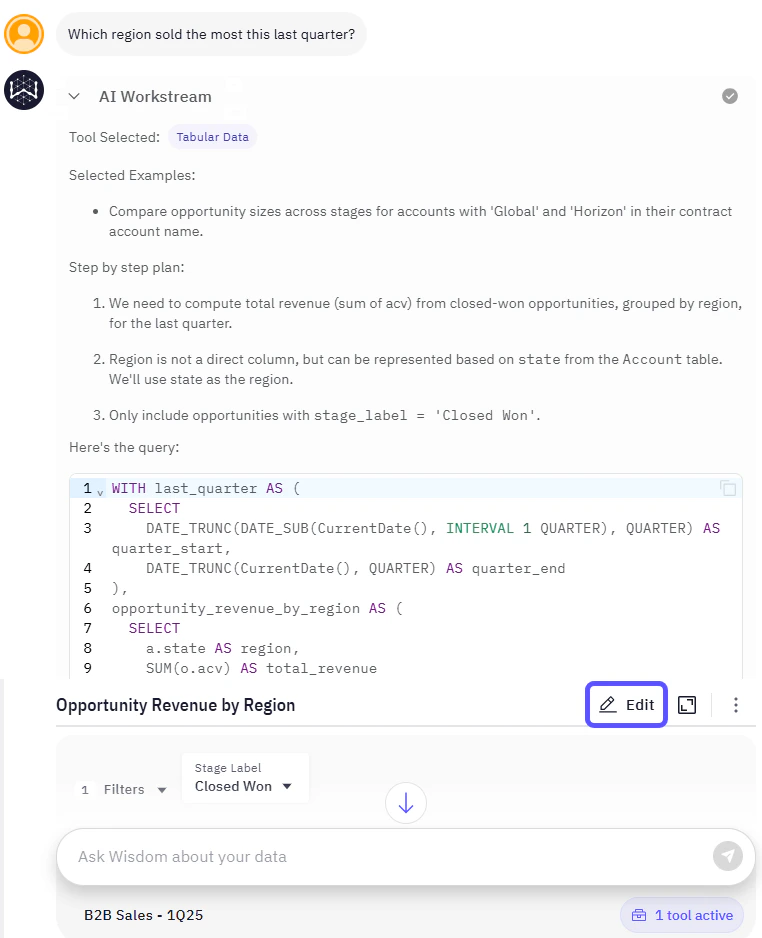 In the window that opens, you will find the Editor and the SQL tabs.
#### Editor Tab
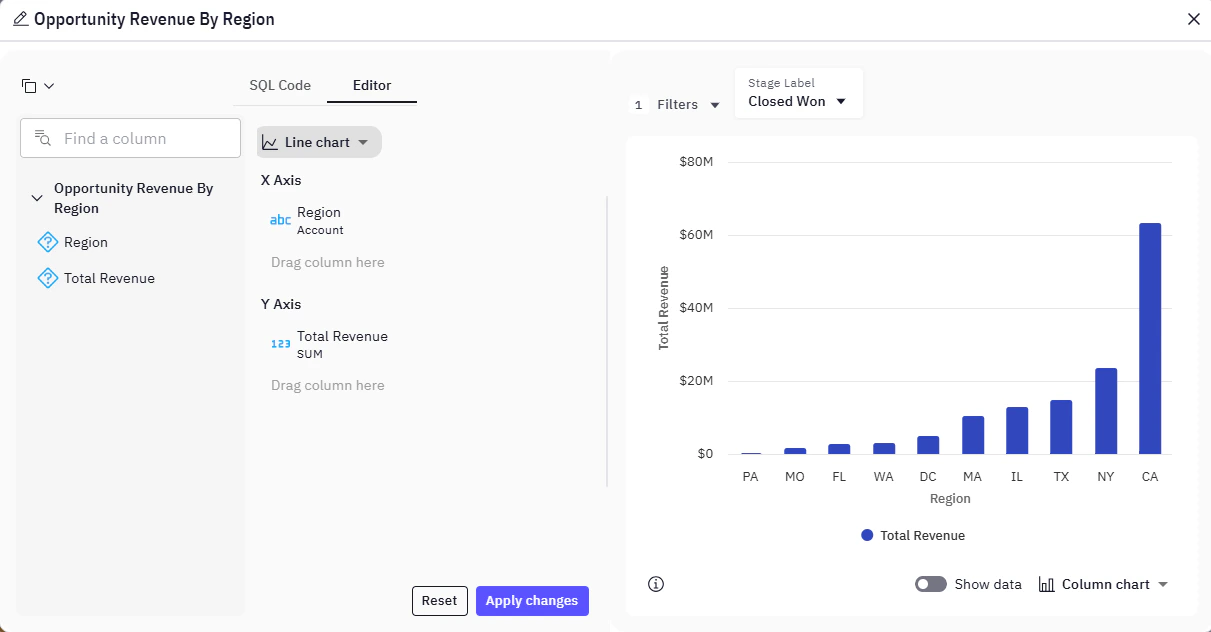
The Editor tab offers detailed data visualization configuration:
* **Chart Type Selection:** Use the dropdown menu to choose the desired visual representation. (e.g., "Line chart")
* **Chart/Table Configuration:** Drag-and-drop data columns to include in the chart, in this example, a Line Chart with X and Y Axes (e.g., "Region" for categorization, "Total Revenue SUM" for aggregation).
* **Data Filtering:** Apply specific criteria (e.g., "Stage Label: Closed Won") for precise data segmentation.
* **Changes Management:** The Apply changes button commits configurations, while the Reset one reverts them.
In the window that opens, you will find the Editor and the SQL tabs.
#### Editor Tab
The Editor tab offers detailed data visualization configuration:
* **Chart Type Selection:** Use the dropdown menu to choose the desired visual representation. (e.g., "Line chart")
* **Chart/Table Configuration:** Drag-and-drop data columns to include in the chart, in this example, a Line Chart with X and Y Axes (e.g., "Region" for categorization, "Total Revenue SUM" for aggregation).
* **Data Filtering:** Apply specific criteria (e.g., "Stage Label: Closed Won") for precise data segmentation.
* **Changes Management:** The Apply changes button commits configurations, while the Reset one reverts them.
 #### SQL Code Tab
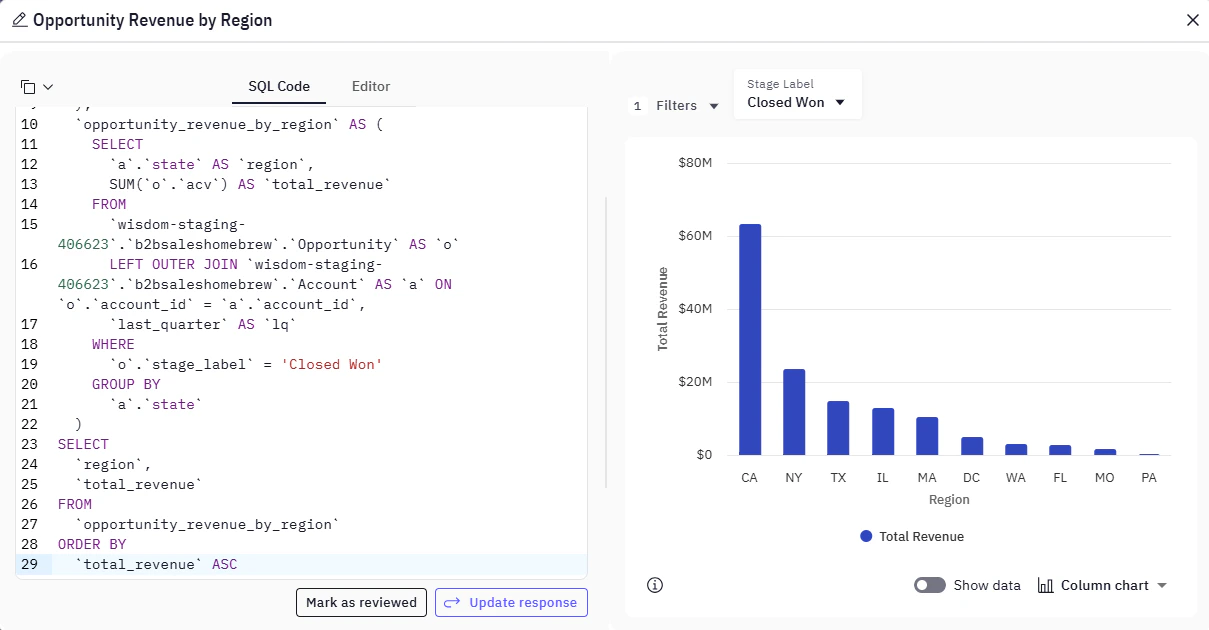
Users can directly define and manipulate the underlying data for visualizations by interacting with the SQL code.
* **SQL Editor:** Craft and modify SQL statements to precisely define your dataset. This includes selecting columns, applying aggregations (e.g., SUM, AVG), joining multiple tables, filtering data with `WHERE` clauses, and ordering results.
* **Workflow Management:**
* **Execution & Refresh:** Click the **Update response** button to execute the current SQL query and refresh the associated data visualization with the newly retrieved results.
#### SQL Code Tab
Users can directly define and manipulate the underlying data for visualizations by interacting with the SQL code.
* **SQL Editor:** Craft and modify SQL statements to precisely define your dataset. This includes selecting columns, applying aggregations (e.g., SUM, AVG), joining multiple tables, filtering data with `WHERE` clauses, and ordering results.
* **Workflow Management:**
* **Execution & Refresh:** Click the **Update response** button to execute the current SQL query and refresh the associated data visualization with the newly retrieved results.
 * **Review & Validation:**
1. Select **Mark as reviewed** to confirms that the SQL code has been validated or checked, streamlining collaborative workflows.
2. After selecting this option, the **Review Question** window opens where you can add the title of your question.
3. Once ready, click on Confirm.
* **Review & Validation:**
1. Select **Mark as reviewed** to confirms that the SQL code has been validated or checked, streamlining collaborative workflows.
2. After selecting this option, the **Review Question** window opens where you can add the title of your question.
3. Once ready, click on Confirm.
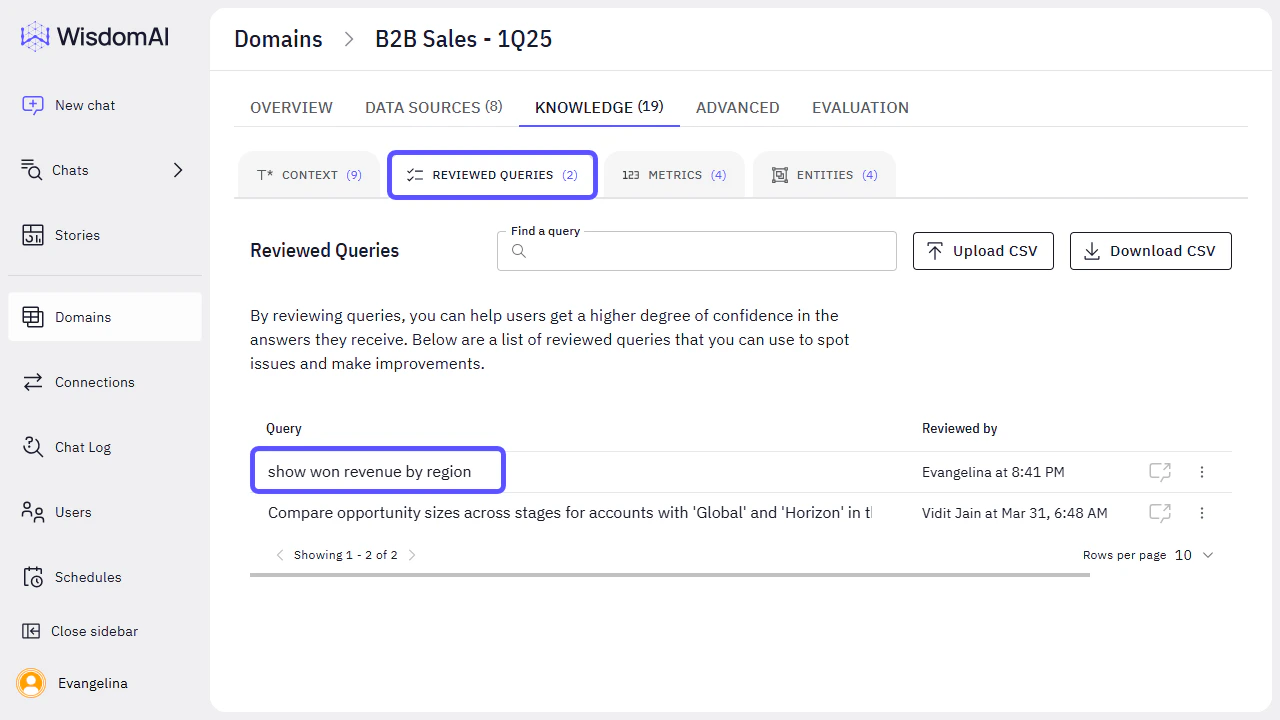
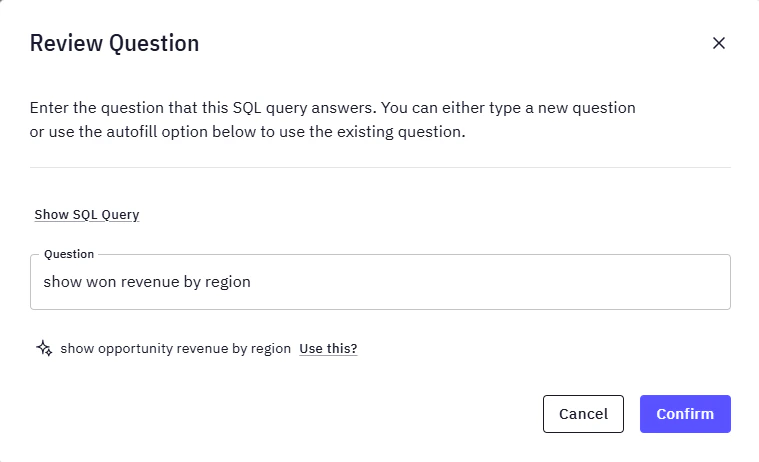 This Reviewed Query (a tuple of an SQL code and the question it answers to) will become available within the Domains section. To access it, go to **Domains** > **Access the corresponding Domain** > **Knowledge** > **Reviewed Queries**.
 ### Add Knowledge
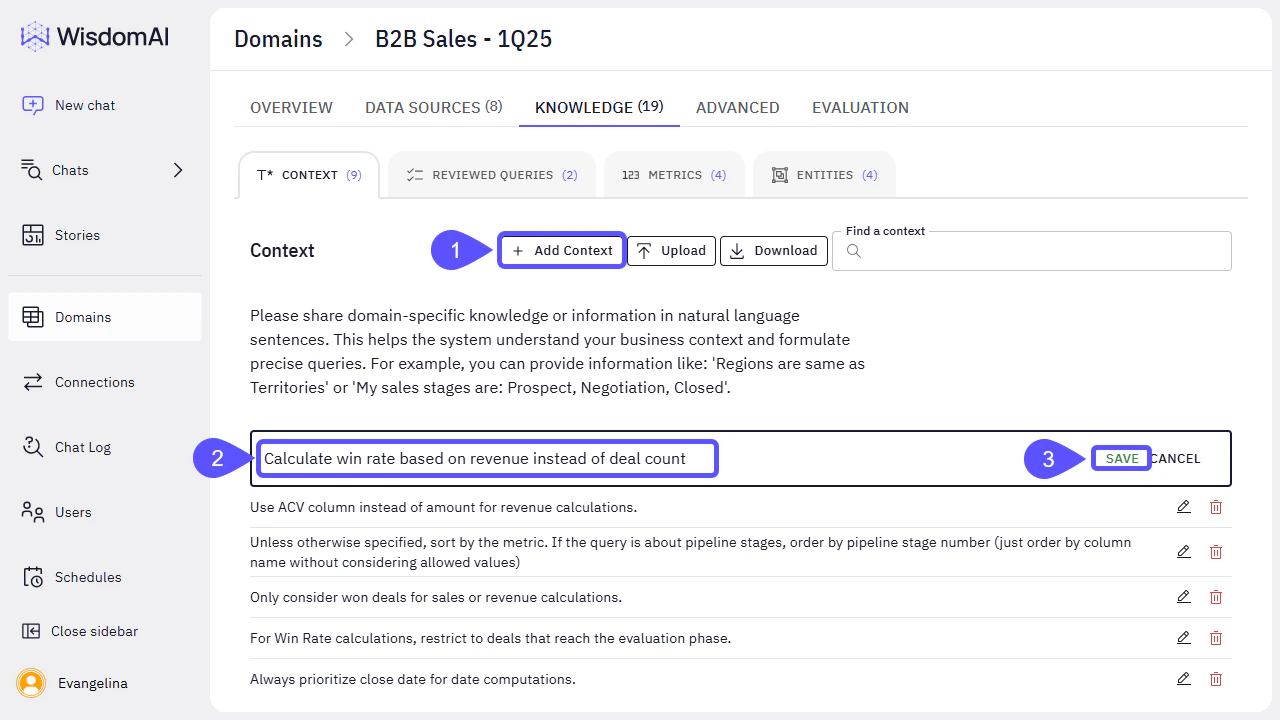
1. Go to **Domains** > (Access the Specific Domain) > **Knowledge** > **Context** section to add or modify domain-specific knowledge and information in natural language sentences and click on **Add Context**.
This helps the system understand your business context and formulate more precise queries. For example, you can define terms like "Regions are same as Territories" or clarify "My sales stages are: Prospect, Negotiation, Closed." This direct manipulation of the context allows you to guide the chatbot's understanding and improve its ability to generate relevant SQL queries.
2. In the text box that appears, add the **Context specification**.
3. Click on **SAVE** to keep your added content.
### Add Knowledge
1. Go to **Domains** > (Access the Specific Domain) > **Knowledge** > **Context** section to add or modify domain-specific knowledge and information in natural language sentences and click on **Add Context**.
This helps the system understand your business context and formulate more precise queries. For example, you can define terms like "Regions are same as Territories" or clarify "My sales stages are: Prospect, Negotiation, Closed." This direct manipulation of the context allows you to guide the chatbot's understanding and improve its ability to generate relevant SQL queries.
2. In the text box that appears, add the **Context specification**.
3. Click on **SAVE** to keep your added content.
 In all these cases, the system will use the provided data to adjust the context of your database, modelling it further, and making it possible to provide better answers in a future search.
## Test Answers
Once you have validated or edited a chatbot response, it is important to test the outcome to ensure the changes improve accuracy and maintain the integrity of the original question. Testing not only verifies that the answer is correct, it also helps train the system to generate more reliable responses in the future.
There are several ways you can actively test and refine your interactions:
After submitting feedback (e.g., via thumbs down), the chat interface offers a **Retry** option. This allows the system to regenerate the response while incorporating your adjustments or corrections, whether it is a refined SQL query or updated natural language prompt. This is especially helpful for:
* Verifying whether your edit resolved the issue.
* Comparing original vs. improved outputs.
* Seeing how changes affect the data visualization.
If you edited the SQL, click [**Update response**](/improve-wisdom-ai-responses/validate-and-test-answers#sql-code-tab) to run the revised query. This re-executes the logic and updates the answer and/or chart accordingly. This step is essential for:
* Confirming that syntax and logic errors have been fixed.
* Testing if the new query returns accurate and expected data.
* Visualizing how different filters or joins affect the results.
You can also validate results by cross-referencing with known values or external reports.
After confirming that the answer and query are correct, select [**Mark as reviewed**](/improve-wisdom-ai-responses/validate-and-test-answers#sql-code-tab). This promotes the question–answer pair (with its SQL) into the **Reviewed Queries** repository. Reviewed queries serve as a trustworthy reference for similar future questions and strengthen the chatbot’s knowledge within that Domain.
This workflow is especially useful for:
* Teams collaborating on analytics.
* Ensuring consistent outputs over time.
* Building a library of validated queries for business-critical topics.
Once an answer is working, try rephrasing your original question to see if the chatbot still returns accurate results. For example:
* Original: *“Show me revenue by region for last quarter.”*
* Variation: *“How much did each territory earn last Q?”*
If the system handles both well, it means it understands your business context. If not, consider refining the [**Context**](/improve-wisdom-ai-responses/validate-and-test-answers#fine-tune-the-context) in the Knowledge section to improve generalization.
## Next Steps
* [Curate Knowledge Workflow](/improve-wisdom-ai-responses/curate-knowledge-workflow)
* [Advanced Data Modeling: Creating Knowledge](/setting-up-wisdom-ai/advanced-data-modeling-creating-knowledge)
In all these cases, the system will use the provided data to adjust the context of your database, modelling it further, and making it possible to provide better answers in a future search.
## Test Answers
Once you have validated or edited a chatbot response, it is important to test the outcome to ensure the changes improve accuracy and maintain the integrity of the original question. Testing not only verifies that the answer is correct, it also helps train the system to generate more reliable responses in the future.
There are several ways you can actively test and refine your interactions:
After submitting feedback (e.g., via thumbs down), the chat interface offers a **Retry** option. This allows the system to regenerate the response while incorporating your adjustments or corrections, whether it is a refined SQL query or updated natural language prompt. This is especially helpful for:
* Verifying whether your edit resolved the issue.
* Comparing original vs. improved outputs.
* Seeing how changes affect the data visualization.
If you edited the SQL, click [**Update response**](/improve-wisdom-ai-responses/validate-and-test-answers#sql-code-tab) to run the revised query. This re-executes the logic and updates the answer and/or chart accordingly. This step is essential for:
* Confirming that syntax and logic errors have been fixed.
* Testing if the new query returns accurate and expected data.
* Visualizing how different filters or joins affect the results.
You can also validate results by cross-referencing with known values or external reports.
After confirming that the answer and query are correct, select [**Mark as reviewed**](/improve-wisdom-ai-responses/validate-and-test-answers#sql-code-tab). This promotes the question–answer pair (with its SQL) into the **Reviewed Queries** repository. Reviewed queries serve as a trustworthy reference for similar future questions and strengthen the chatbot’s knowledge within that Domain.
This workflow is especially useful for:
* Teams collaborating on analytics.
* Ensuring consistent outputs over time.
* Building a library of validated queries for business-critical topics.
Once an answer is working, try rephrasing your original question to see if the chatbot still returns accurate results. For example:
* Original: *“Show me revenue by region for last quarter.”*
* Variation: *“How much did each territory earn last Q?”*
If the system handles both well, it means it understands your business context. If not, consider refining the [**Context**](/improve-wisdom-ai-responses/validate-and-test-answers#fine-tune-the-context) in the Knowledge section to improve generalization.
## Next Steps
* [Curate Knowledge Workflow](/improve-wisdom-ai-responses/curate-knowledge-workflow)
* [Advanced Data Modeling: Creating Knowledge](/setting-up-wisdom-ai/advanced-data-modeling-creating-knowledge)