> ## Documentation Index
> Fetch the complete documentation index at: https://wisdomai-add-trigger-agent-api.mintlify.site/llms.txt
> Use this file to discover all available pages before exploring further.
# Build Dashboards
What you may know as dashboards, In WisdomAI are called **Stories**. Stories allow you to present curated insights in a clear, structured, and visually appealing format that you can arrange and share.
If you are looking for help on how to turn chat answers into Stories, read the article [Turn Answers into Stories](/using-wisdom-ai-everyday/turn-answers-into-stories).
This guide will walk you through the next steps after your answers are ready to be showcased, including:
* [Explore the Stories Editor](#explore-the-stories-editor)
* [Arrange Story Layout](#arrange-story-layouts)
* [Get Stakeholders Sign-Off](#gather-stakeholders-sign-off)
* [Export your Story](#export-your-story)
## Explore the Stories Editor
Once your analysis is complete and you have turned answers into cards (see the [Turn Answers into Stories](/using-wisdom-ai-everyday/turn-answers-into-stories) article), the **Stories** section becomes your central workspace. Here, you can refine the presentation of your insights, build out full dashboards, and prepare content for sharing.
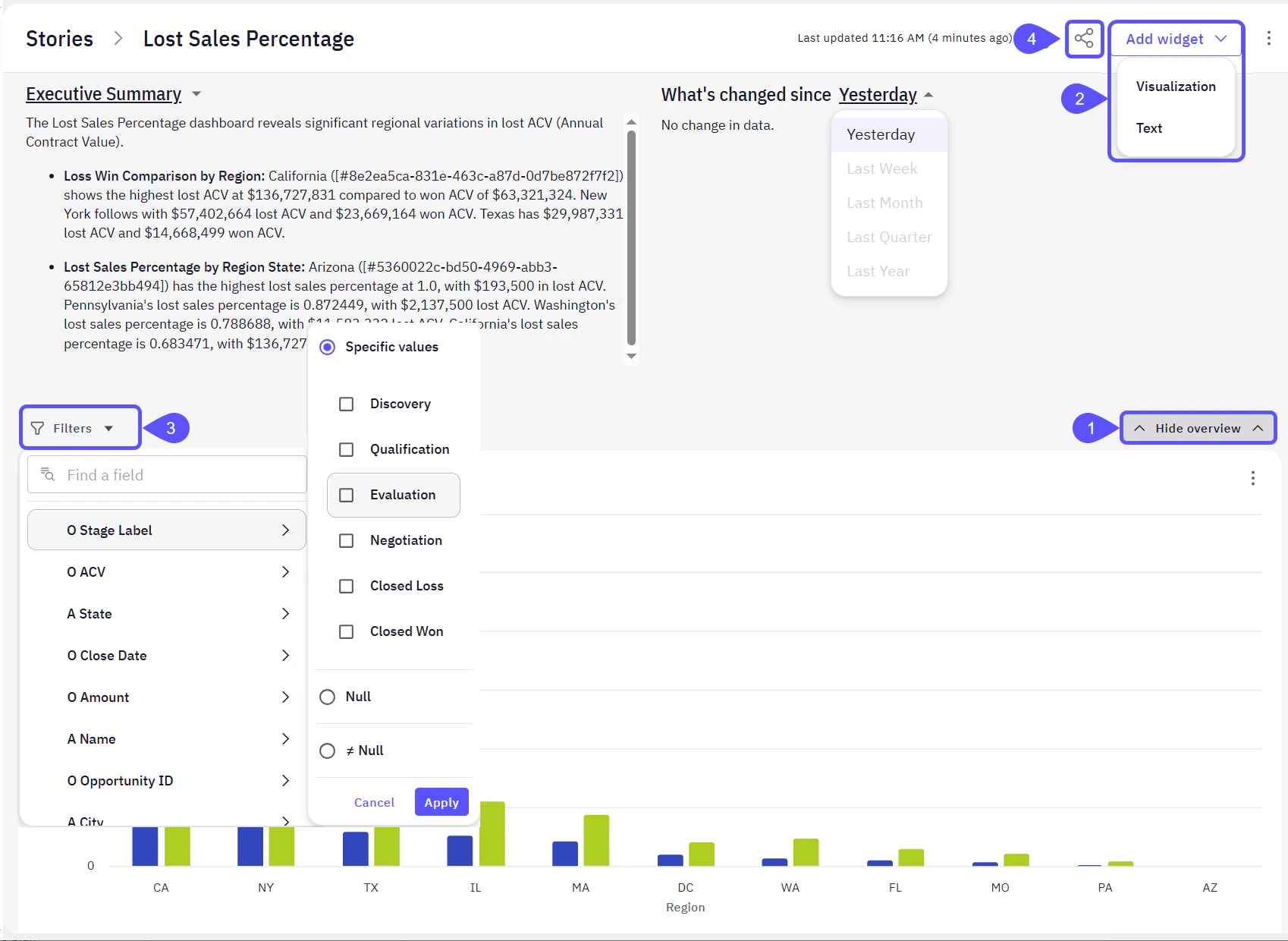
The Stories Editor includes features such as:
1. A collapsible **Overview** section that includes:
* An **Executive Summary** for setting context at the top of your Story.
* A data summary for **What's changed since** a specific date such as yesterday, last week, etc.
2. An option to **Add widget** directly from the Story interface. Create **Visualization** or **Text** widgets that communicate key takeaways.
The **Visualization** option opens a chat interface that helps you generate visual content based on your data, while the **Text** option launches an MDX editor for adding narrative or explanatory content.
3. A **Filters** pane for interactive data exploration.
4. An option to **share** your Story effectively.
 ## Arrange Story Layout
Make your Story both visually compelling and logically structured:
* **Move Stories cards** **around the workspace** to arrange their order based on importance, logical flow, or stakeholder preference.
* **Group related cards** to create thematic Stories (e.g., “Monthly Revenue Trends,” “Top Performing Reps,” “Churn Metrics”).
* [**Edit Stories cards' answers**](/improve-wisdom-ai-responses/validate-and-test-answers) to emphasize key metrics and insights, ensuring your visuals match the narrative flow.
A well-structured layout helps stakeholders grasp patterns faster and ask more meaningful follow-up questions.
All changes are saved automatically as you work. You can always return to the Story later to iterate.
## Arrange Story Layout
Make your Story both visually compelling and logically structured:
* **Move Stories cards** **around the workspace** to arrange their order based on importance, logical flow, or stakeholder preference.
* **Group related cards** to create thematic Stories (e.g., “Monthly Revenue Trends,” “Top Performing Reps,” “Churn Metrics”).
* [**Edit Stories cards' answers**](/improve-wisdom-ai-responses/validate-and-test-answers) to emphasize key metrics and insights, ensuring your visuals match the narrative flow.
A well-structured layout helps stakeholders grasp patterns faster and ask more meaningful follow-up questions.
All changes are saved automatically as you work. You can always return to the Story later to iterate.
 ## Get Stakeholders Sign-Off
Before finalizing your Story for broader distribution or operational use, it is important to obtain approval from key stakeholders. This ensures the information is accurate, aligned with business goals, and ready to guide decisions.
Here is a suggested flow:
1. [**Share the Story link**](/using-wisdom-ai-everyday/share-stories-and-set-access-control) with stakeholders.
2. **Add context**: summarize what the Story includes and the decisions it is intended to support.
3. **Collect feedback** directly within the platform or through async tools (Slack, email).
4. **Incorporate edits** based on feedback, then tag the Story as final or version it by renaming it for future iterations.
Keeping track of who has reviewed and approved the Story helps streamline communication and build trust in the data.
## Get Stakeholders Sign-Off
Before finalizing your Story for broader distribution or operational use, it is important to obtain approval from key stakeholders. This ensures the information is accurate, aligned with business goals, and ready to guide decisions.
Here is a suggested flow:
1. [**Share the Story link**](/using-wisdom-ai-everyday/share-stories-and-set-access-control) with stakeholders.
2. **Add context**: summarize what the Story includes and the decisions it is intended to support.
3. **Collect feedback** directly within the platform or through async tools (Slack, email).
4. **Incorporate edits** based on feedback, then tag the Story as final or version it by renaming it for future iterations.
Keeping track of who has reviewed and approved the Story helps streamline communication and build trust in the data.
 ## Export your Story
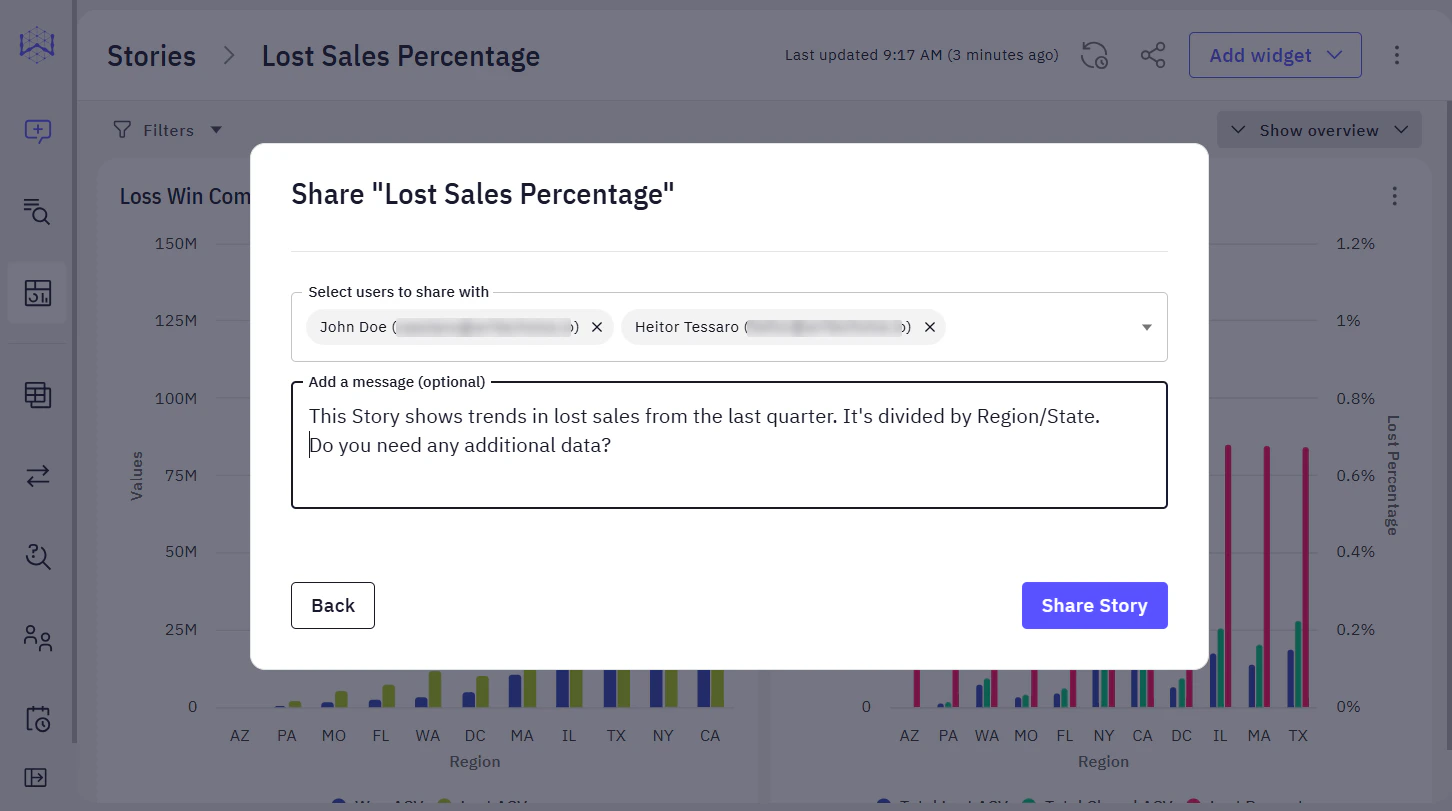
Once you are satisfied with your layout and it has been approved by stakeholders, you may want to **share** it or **schedule notifications** to keep stakeholders and explorers informed. Both topics are covered in related articles.
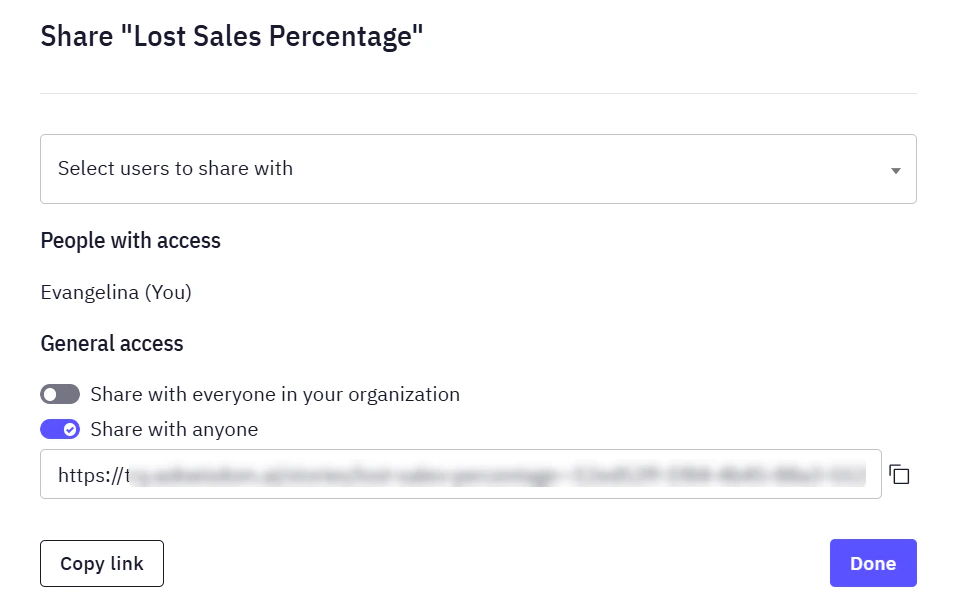
* To learn how to share your Story and manage access permissions, see the [**Share Stories and Set Access Control**](/using-wisdom-ai-everyday/share-stories-and-set-access-control) article.
## Export your Story
Once you are satisfied with your layout and it has been approved by stakeholders, you may want to **share** it or **schedule notifications** to keep stakeholders and explorers informed. Both topics are covered in related articles.
* To learn how to share your Story and manage access permissions, see the [**Share Stories and Set Access Control**](/using-wisdom-ai-everyday/share-stories-and-set-access-control) article.
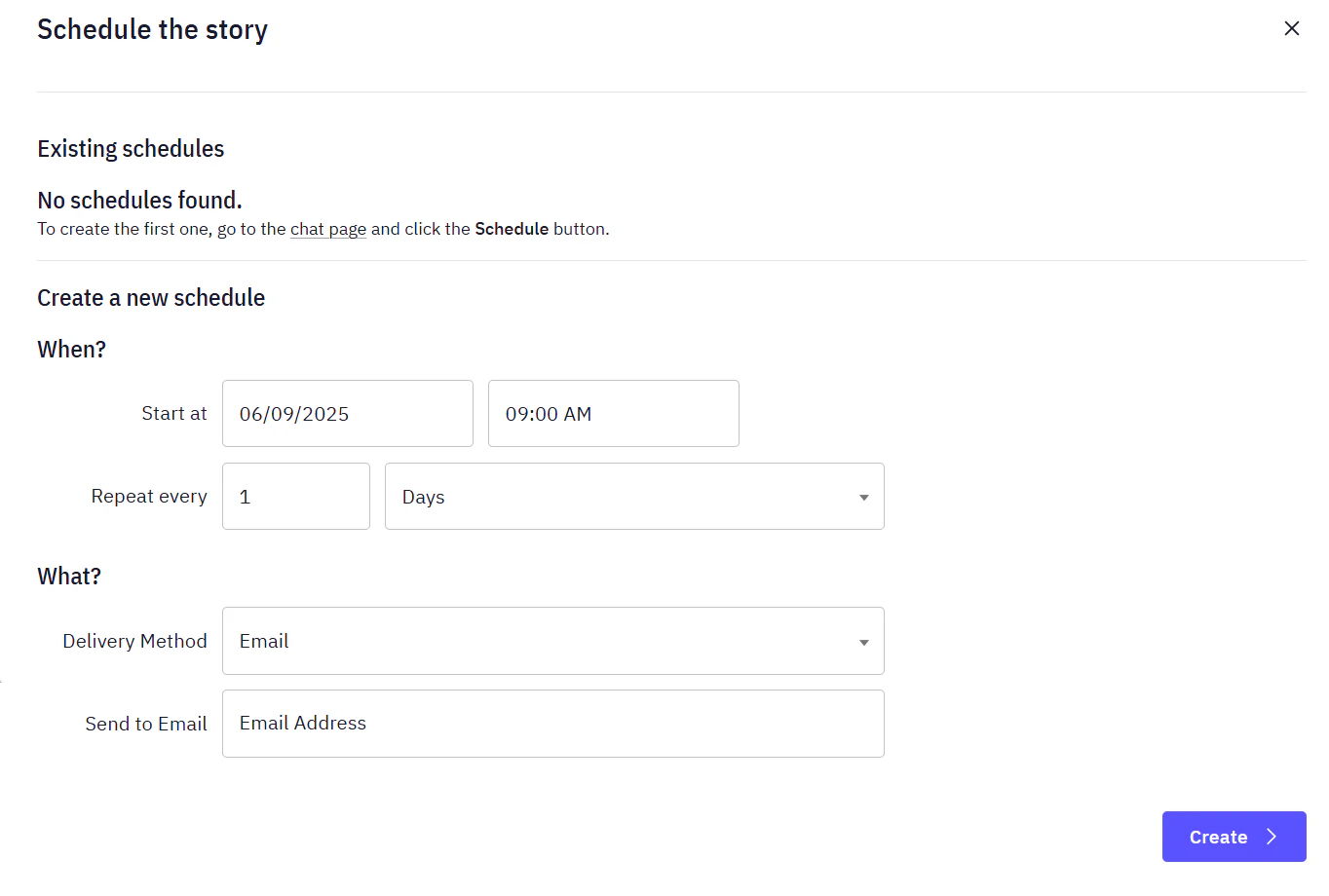
 * If you would like to schedule Story updates and receive notifications, check out the [**Schedule Story Notifications**](/using-wisdom-ai-everyday/schedule-story-notifications) guide.
 ## Next Steps
* [Turn Answers into Stories](/using-wisdom-ai-everyday/turn-answers-into-stories)
* [Schedule Story Notifications](/using-wisdom-ai-everyday/schedule-story-notifications)
* [Share Stories and Set Access Control](/using-wisdom-ai-everyday/share-stories-and-set-access-control)
## Next Steps
* [Turn Answers into Stories](/using-wisdom-ai-everyday/turn-answers-into-stories)
* [Schedule Story Notifications](/using-wisdom-ai-everyday/schedule-story-notifications)
* [Share Stories and Set Access Control](/using-wisdom-ai-everyday/share-stories-and-set-access-control)